This app is no longer maintained by VTEX. This means support and maintenance are no longer provided.
For forked apps: This app received a breaking change that applies only to the official app. For security reasons, VTEX strongly recommends applying this change to forks of this app as well. It adds the Download Notification Requests License Manager resource as a requirement for administrative operations. To include them in your fork, follow the implementation in the app update to version
v1.15.0.
The Availability Notify component displays a subscription form when a product SKU is unavailable. The form lets customers subscribe to receive notifications when that item is restocked.
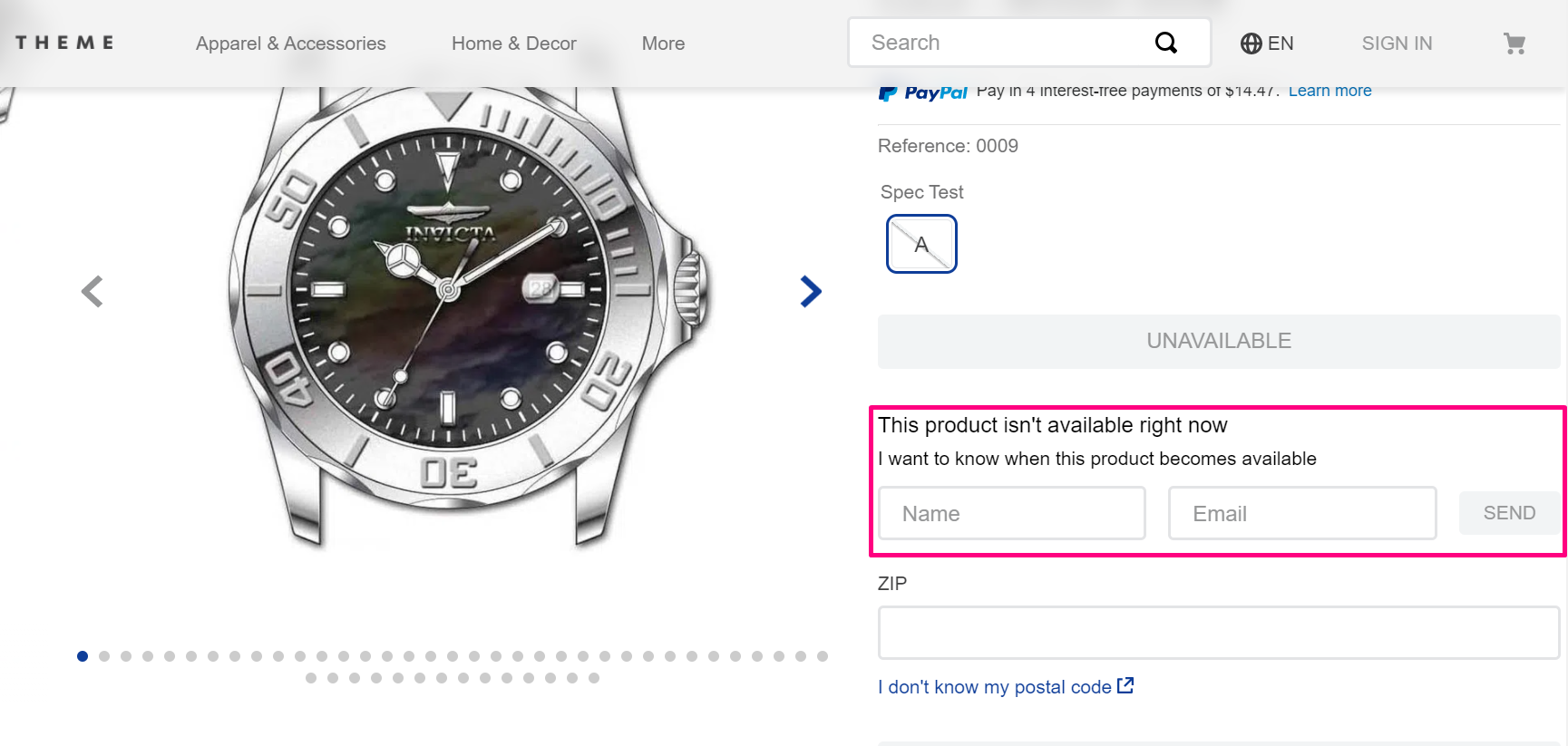
The app records the notification request and monitors inventory updates. This way, once the requested SKU gets back in stock, the app will email the shoppers who asked to be notified.
Configuration
-
Install the Availability Notify app in the desired VTEX account by running
vtex install vtex.availability-notifyin your terminal. -
Open your store's Store Theme app directory in your code editor.
-
Open your app's
manifest.jsonfile and add the Availability Notify app under thepeerDependenciesfield.Due to changes in its peer dependencies, you will need to release a new major version. Check the documentation on How to migrate CMS settings after a theme major update.
_10"peerDependencies": {_10"vtex.availability-notify": "1.x"_10} -
Add the
availability-notifycomponent block to your PDP in your store theme (store.product). For example:_10{_10"store.product": {_10"children": [_10"availability-notify"_10]_10},_10..._10} -
Once you have added the availability-notify component, access your store's Admin.
-
Go to Extensions Hub > Installed Apps > Availability Notifier. You can also find it using the search bar at the top of the page.
-
Then, you will see the app's settings:
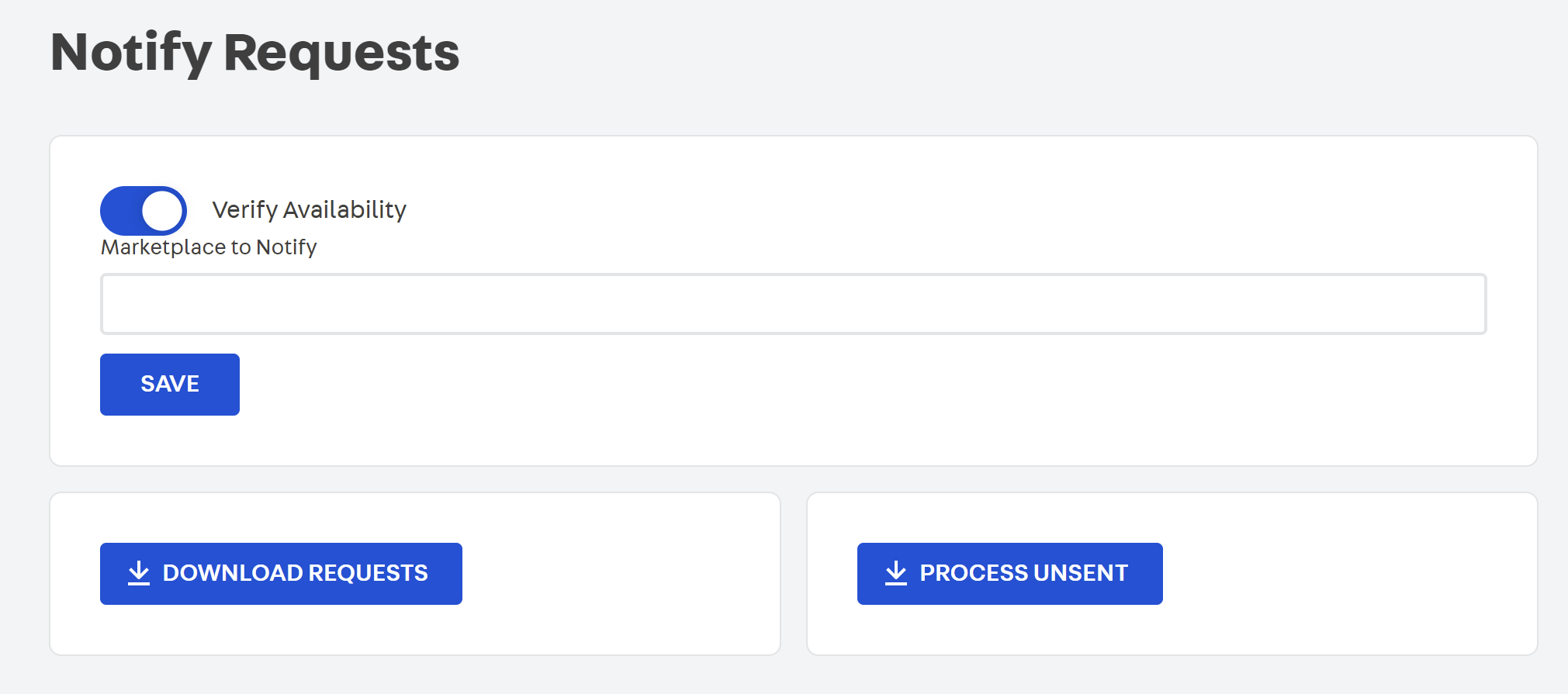
Setting field Description Verify Availability Runs a shipping simulation to verify that the item can be shipped to the shopper before sending a notification. Marketplace to Notify Allows a seller account to specify a comma-separated list of marketplace account names to notify of inventory updates. Download Requests Download an XLS file of all request records. Requires the Download Notification Requests License Manager resource. Process Unsent Process all unsent requests and download an XLS file of the results. Requires the Download Notification Requests License Manager resource.
After making the desired settings in the app, set up its template according to your needs. Check out more details about it in the next section, Customizing the Back in stock template.
Required permissions for request management
Breaking change: Starting on September 21st, 2026, Download Requests, Process Unsent, and deleting notification requests require the Download Notification Requests License Manager resource. Users without this resource will see a permission error in Admin and receive HTTP 403 Forbidden from the related APIs. For more details, see the breaking change announcement.
Seller Configuration
This app also needs to be installed on the seller account.
- Install the Availability Notify app in the desired VTEX SELLER account through the app store.
- In the app configuration, enter the name of the marketplace to notify when there are any inventory changes. This will forward the inventory change to the MARKETPLACE and then trigger the Back In Stock email to the subscribed users of that product.
Customizing the Back in stock template
Once you have installed the app, you can customize the email template to send to the shoppers who asked to be notified.
- Find the email template, named BACK IN STOCK, in your store's Admin in Customer > Message center > Templates.
- Search for the availability-notify component template, named BACK IN STOCK, and click on it.
- After, you will see the email template and its configuration. For example:
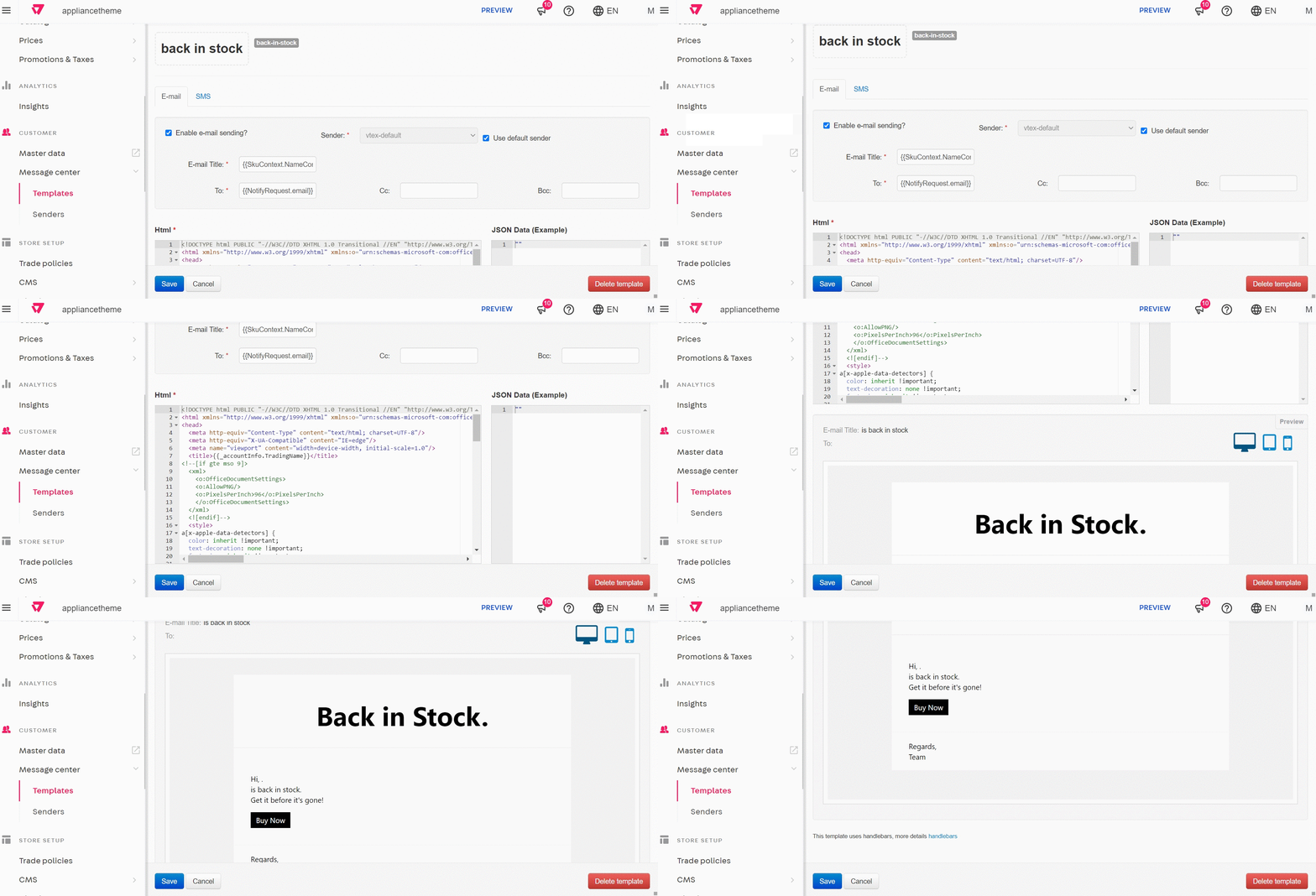
To edit the email template's field, check the documentation on How to create and edit transactional email templates, and you will notice the JSON Data field, which is responsible for adding variables that allow you to dynamically add data to the email. These variables are JSON properties, and you can see more details about them in Get SKU and context and in Including order variables in email template.
:warning: JSON Data examples will only appear in templates when you complete the desired action in your store. If you have not transacted an order, recurrence, or any other action, the JSON data will appear blank. NOTE: The notification email is only triggered when on the master workspace.
Searching and processing availability notify data
This app uses Master Data V2, to search for stored data you should use Master Data API - v2 endpoints with the variables data_entity_name and schema with the value notify.
If you want to run the services manually, you can use the endpoints below:
To process Unsent Requests:
https://app.io.vtex.com/vtex.availability-notify/v1/{{accountName}}/master/_v/availability-notify/process-unsent-requests.
To process All Requests:
https://app.io.vtex.com/vtex.availability-notify/v1/{{accountName}}/master/_v/availability-notify/process-all-requests.
To delete a notification request, use the deleteRequest GraphQL mutation:
_10mutation DeleteRequest($id: String) {_10 deleteRequest(id: $id)_10}
Also, pass the request ID in the id variable:
_10{_10 "id": "{{requestId}}"_10}
The mutation returns true when the request is deleted successfully.
To use these endpoints and the mutation, an API key is required, and it must have the Download Notification Requests License Manager resource. For details, see the breaking change announcement.
Check out the Open API Schemas repository containing several VTEX Postman Collections, including Master Data API - v2.
Customization
In order to apply CSS customizations to this and other blocks, follow the instructions given in the recipe on Using CSS Handles for store customization.
| CSS Handles |
|---|
notiferContainer |
title |
notifyLabel |
form |
content |
input |
inputName |
inputEmail |
submit |
sucess |
error |