Google Pay: Processing information for payment and anti-fraud providers
Common questions from payment and anti-fraud providers about how VTEX processes Google Pay transactions, including additional card fields in the payment payload.
Google Pay is a digital wallet that allows customers to pay with a card saved to their Google account or provisioned to their mobile device. When a customer pays with Google Pay, VTEX sends the transaction to your connector via the Create payment endpoint, including card fields not present in standard card transactions.
This guide addresses common questions from payment and anti-fraud providers about processing these transactions.
What is the difference between DPAN and FPAN?
Google Pay transactions use a tokenized card number instead of the number printed on the card, which is the Primary Account Number (PAN). There are two types of tokenized number:
- DPAN (Device Primary Account Number): Tokenized version of the PAN linked to a specific device of the customer, such as a smartphone, smartwatch, or tablet.
- FPAN (Funding Primary Account Number): Tokenized number that identifies the account charged for the transaction. Wallets use it when the customer can choose between more than one payment method, such as different cards or bank accounts.
For more information, see DPAN and FPAN: Understanding security in the online tokenized payment flow.
What are the differences between a standard card payload and a Google Pay DPAN payload?
In addition to standard card transaction fields, the card object of a Google Pay DPAN transaction can include the following fields:
| Field | Description |
|---|---|
cryptogram | 3-D Secure (3DS) cryptogram data, available only for transactions with DPAN cards. Forward this value to the acquirer when the acquirer requires it. This field was previously called 3DS_criptogram. |
eci | Electronic Commerce Indicator (ECI), which indicates the result of the authentication attempt made by the 3DS system. VTEX sends it in specific scenarios, such as some Visa DPAN transactions. This field was previously called ECI_Indicador. |
paymentOrigin | Digital wallet used for the payment, such as Google Pay. |
VTEX sends
cryptogram,eci, andpaymentOriginonly when these fields are enabled for your account. To enable them, open a ticket with VTEX Support.
The following example shows the card object of a Create payment request for a Google Pay DPAN transaction. In this example, card data is tokenized because the connector environment isn't PCI DSS compliant:
_20{_20 "merchantName": "mystore",_20 "card": {_20 "holder": null,_20 "number": null,_20 "csc": null,_20 "holderToken": "#vtex#token#fd10ce5#holder#",_20 "bin": "489725",_20 "numberToken": "#vtex#token#fd40ce5#number#",_20 "numberLength": 16,_20 "cryptogram": "/gAAAAwAZWJqaw4AAAAAgIRgE4A=",_20 "paymentOrigin": "Google Pay",_20 "eci": null,_20 "expiration": {_20 "month": "12",_20 "year": "2031"_20 },_20 "document": ""_20 }_20}
This example shows only wallet and card-related fields. For the complete request body, see the Create payment endpoint.
Standard credit and debit card transactions made without a digital wallet don't include these fields, so your connector must keep processing payloads that omit them. For the complete list of requirements, see Processing DPAN cards in external connectors.
What are the possible values for the paymentOrigin field in the payload?
Transactions made with other digital wallets carry their own paymentOrigin values, such as Apple Pay. Transactions made without a digital wallet don't include this field.
How can I check whether a transaction used Google Pay?
In the VTEX Admin, go to Orders > Transactions, or type Transactions in the search bar at the top of the page, and open the transaction you want to check. Transactions made with a digital wallet display the following fields:
| Field | Description |
|---|---|
paymentOrigin | Digital wallet used for the payment, such as Google Pay. |
panType | Type of tokenized card number used in the transaction, either DPAN or FPAN. |
cryptogram | 3DS cryptogram data for the transaction. |
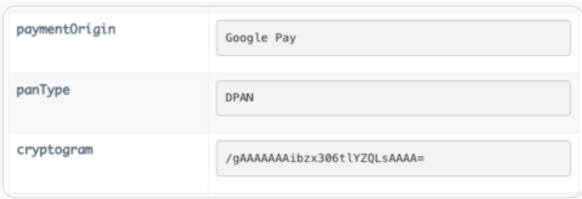
The VTEX Admin displays
panTypein the transaction details, but the Create payment request that VTEX sends to your connector doesn't include this field. To identify the wallet in the payload, usepaymentOrigin.
Is the Card Verification Value (CVV) sent in Google Pay transactions?
No. Transactions with DPAN cards don't require the CVV, because device tokenization identifies the cardholder. VTEX sends the CVV in certain transactions with FPAN cards.
Subscription and recurring transactions also don't use the CVV.
How can I simulate a DPAN test transaction?
A DPAN is linked to a specific device, so you need a mobile device with the card provisioned in Google Pay. On desktop browsers, Google Pay uses a card saved to the Google account, which results in an FPAN transaction.
To run a DPAN test transaction, follow these instructions:
- On an Android device, add a card to the Google Pay app or through the redirect from your bank's app.
- On the same Android device, open the Chrome browser and access your store.
- Add a product to the cart and, at checkout, select Google Pay as the payment method.
- Select the card displayed with the card image.
- Complete the payment.
- In the VTEX Admin, go to Orders > Transactions and confirm that the transaction details display
panTypeasDPAN.
In step 4, select the card displayed with the card image, which results in a DPAN transaction. Selecting the card displayed with the logo of the card network results in an FPAN transaction.