Managing variables and secrets
6 min read
In this guide, you'll learn how to manage variables and secrets in your FastStore project using WebOps.
Variables and secrets are sensitive information, such as API keys, passwords, and tokens, that must be securely managed during the FastStore project deployment.
WebOps centralizes and standardizes variable and secret management, providing a consistent and secure process across all deployment providers. This ensures that sensitive information is kept outside the project codebase and is retrieved securely by WebOps.
Variables and secrets of stores that don't use WebOps are handled through the VTEX IO CLI secrets plugin. To enable secret management, you need to have an emptyvtex.envfile in the project root. The key-value pairs are stored in thesecrets.revealed.jsonfile, which is then encrypted intosecrets.hidden.jsonbefore being committed to the main branch. For stores using WebOps, this workflow has been deprecated, and variables and secrets are managed directly through the WebOps interface.
Local development
For local development, you must use the
vtex.env file to define the variables and secrets needed to run your FastStore project locally.The
vtex.env file is only used in local environments and should always be added to .gitignore to avoid leaking variables and secrets through version control. By adding it to .gitignore, variables and secrets defined in the vtex.env file won't be available in deployed environments via WebOps.Before you begin
VTEX has a permissions system, and only users assigned to a role with the required License Manager resources can manage variables and secrets.
The permissions system is in open beta. To enable it, open a ticket with VTEX Support.
After enabling the feature, make sure you have a user associated with a role that contains the following License Manager resources:
- Product: FastStore
- Category: Secrets
- Resources: View Secrets and Edit Secrets

Instructions
To manage variables and secrets, go to your FastStore WebOps dashboard and navigate to the Settings tab.
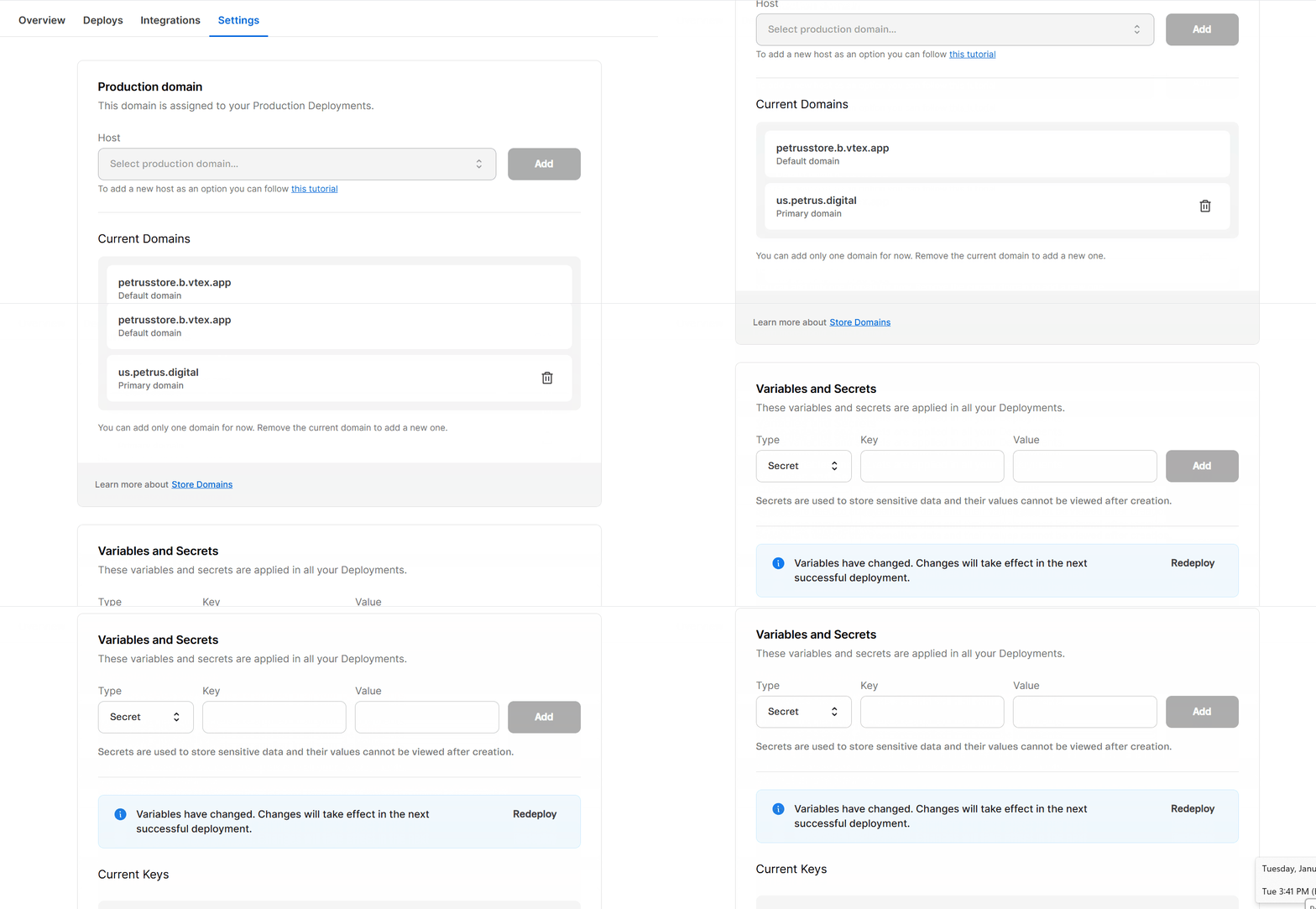
In the Variables and Secrets section, you can create, update, or delete variables and secrets following the steps below. You can also authenticate a private npm registry using a dedicated secret.
After you create, update, or delete a variable or secret, it may take a few minutes for the change to propagate. Wait 5 minutes before triggering a new deployment.If you deployed your storefront immediately after creating, updating, or deleting a variable or secret and the change isn't reflected in your store, wait a few minutes and run another deployment before opening a support ticket.
Creating variables and secrets
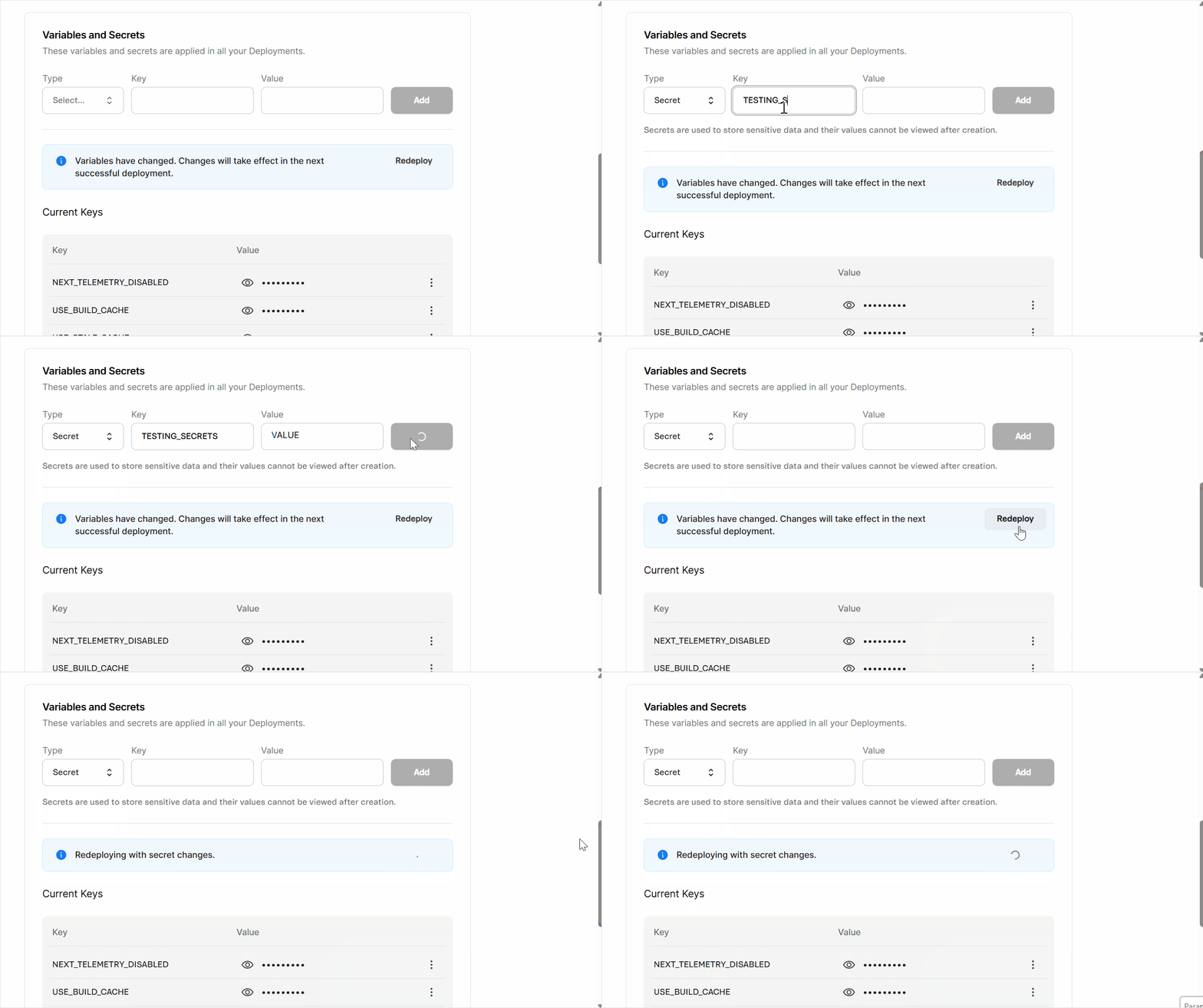
- In the
Typefield, clickSelect...to open the dropdown menu, then choosetextfor non-sensitive values that can be viewed later (for example, public URLs), orsecretfor sensitive values that must be hidden after saving (for example, API tokens and passwords). - In the
Keyfield, enter the name of the variable or secret, which serves as its unique identifier (for example, VTEX_API_TOKEN, NEXT_SECRET_KEY).
Variables accessible in the browser (client-side) must start with the prefixNEXT_PUBLIC_. Use names without this prefix for all other variables and secrets.
- In the
Valuefield, enter the corresponding information you want to store (for example, the actual token, key, or password). - Click
Add. A pop-up withNew secret added successfullywill open, and you'll see the messageVariables have changed. Changes will take effect in the next successful deployment.alongside aRedeploybutton.
When creating multiple variables and secrets, make sure you include all of them before proceeding to the next step. This prevents sync errors.
- Wait 5 minutes, then click
Redeployto redeploy your website with the updated variable and secret configuration. You'll see the messageRedeploying with secret changes, and a pop-up withDeployment created successfullywill open. - Track the deployment status in the Deploys tab of the WebOps dashboard.
During the build process, any variables and secrets added through WebOps will be transformed into environment variables within the code, which are automatically loaded into the
process.env object. You can access these values in your code using process.env.VARIABLE_NAME. Remember to replace VARIABLE_NAME with the name you assigned to your variable or secret in the Key field.The automatic conversion of variables and secrets into environment variables doesn't apply to theNPM_RCsecret, which is handled differently by the build pipeline. See Using a private npm registry for details.
The created variable or secret will be available in the Current Keys section.
Using a private npm registry
If your FastStore project depends on private npm packages, such as a design system published to a private registry like GitHub Packages, you can authenticate the install step of the build by creating a secret with the reserved key
NPM_RC. Follow these steps:-
Follow the steps in Creating variables and secrets to create a new secret.
-
In the
Typefield, selectsecret. -
In the
Keyfield, enter exactlyNPM_RC. -
In the
Valuefield, enter the entire content you would include in an.npmrcfile, with the authentication token written inline. For example:_10//npm.pkg.github.com/:_authToken=<YOUR_TOKEN>_10@your-scope:registry=https://npm.pkg.github.com/ -
Click
Add. -
Wait 5 minutes, then click
Redeployas described in Creating variables and secrets.
TheNPM_RCsecret is a special case. During the build, its content is written directly to an.npmrcfile before dependencies are installed, so private packages can be resolved. Keep the following in mind:
- Don't reference another variable or secret inside the
NPM_RCvalue (for example,${TOKEN}). Use the token inline, since the.npmrcfile is generated before other variables and secrets are available as environment variables.- Don't commit an
.npmrcfile to your project repository. If you need one, provide its content exclusively through theNPM_RCsecret.
Updating variables and secrets
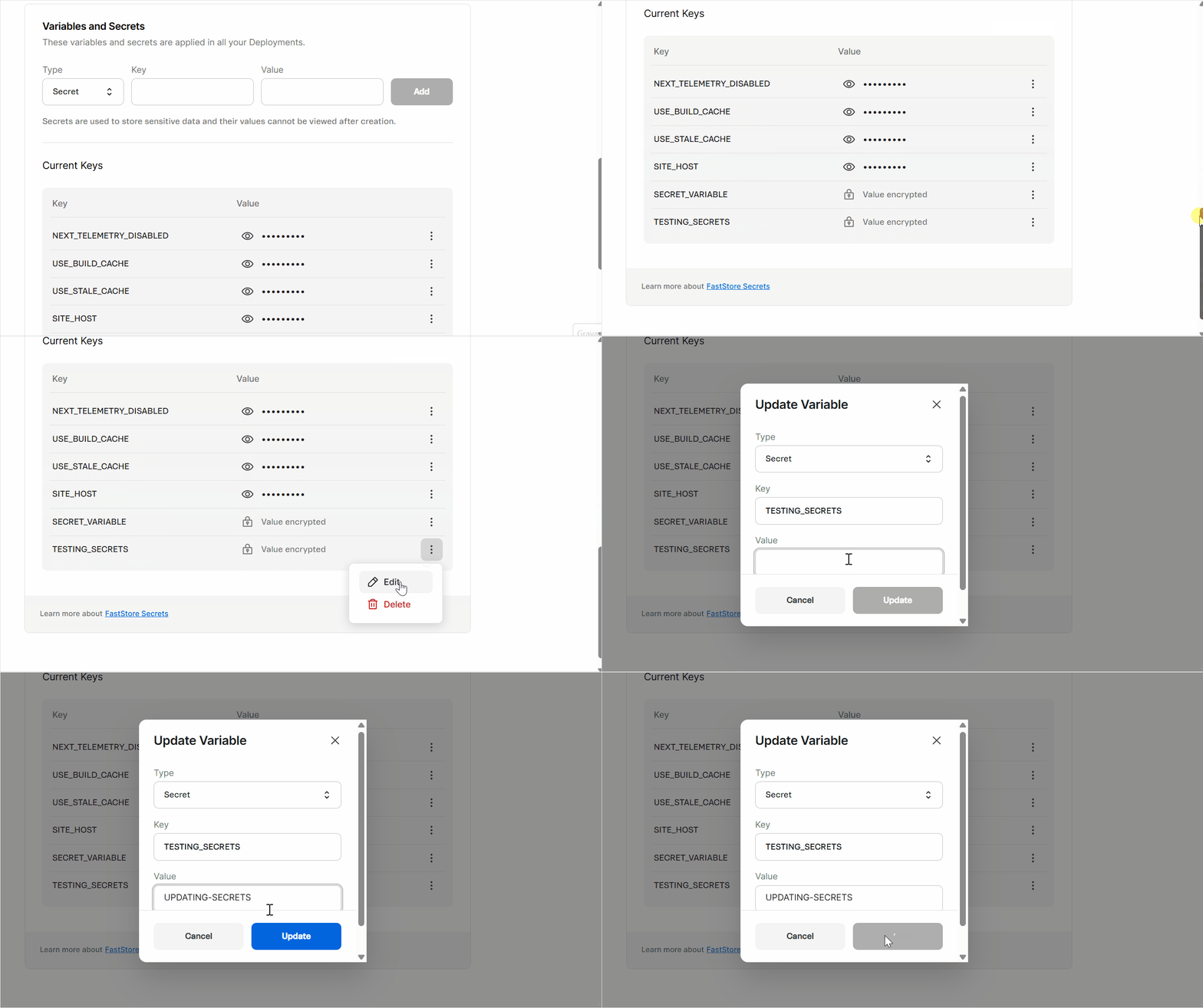
- Go to the
Current Keyssection. - Next to the variable or secret you need to update, click
⋮and then clickEdit. - Click
Update. A pop-up withSecret updated successfullywill open, and you'll see the messageVariables have changed. Changes will take effect in the next successful deployment.alongside aRedeploybutton. - Wait 5 minutes, then click
Redeployto redeploy your website with the updated variable and secret configuration. You'll see the messageRedeploying with secret changes, and a pop-up withDeployment created successfullywill open. - Track the deployment status in the Deploys tab of the WebOps dashboard.
Deleting variables and secrets
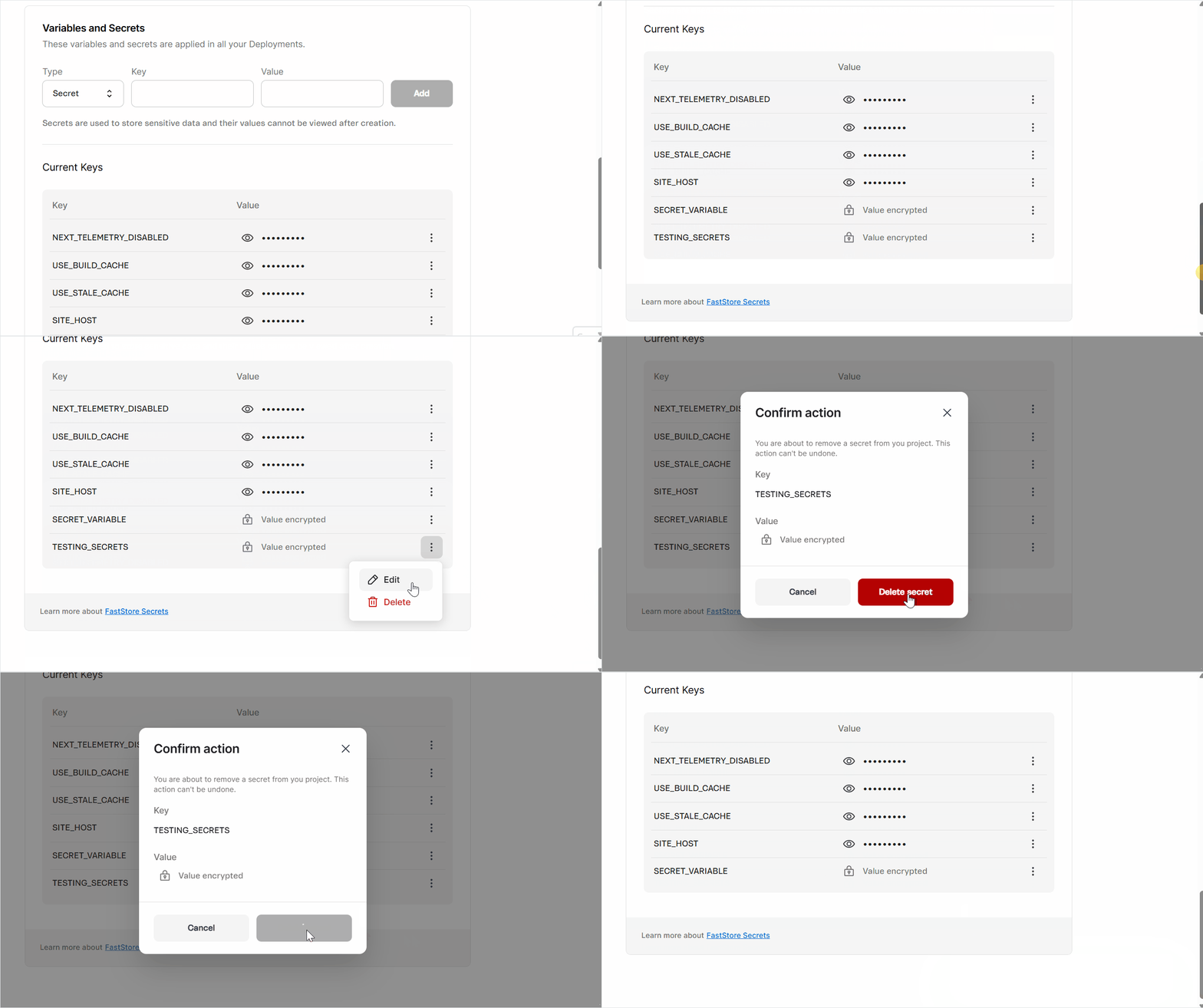
- Go to the
Current Keyssection. - Next to the variable or secret you need to delete, click
⋮and then clickDelete. - Confirm the variable or secret you want to delete.
This action can't be undone.
- Click
Delete secret. A pop-up withSecret deleted successfullywill open, and you'll see the messageVariables have changed. Changes will take effect in the next successful deployment.alongside aRedeploybutton. - Wait 5 minutes, then click
Redeployto redeploy your website with the updated variable and secret configuration. You'll see the messageRedeploying with secret changes, and a pop-up withDeployment created successfullywill open. - Track the deployment status in the Deploys tab of the WebOps dashboard.
If an error appears (Failed to create/update/delete secret. Please, try again.) when creating, updating, or deleting a variable or secret, repeat the process. If the problem persists, open a ticket with VTEX Support.